
AI Sound Restore Pro
Make every word of dialogue clear.
Clean up noisy movie soundtracks: AI separates voices from music, wind, traffic and hiss, then evens out the loudness — the picture stays untouched.
€39.00Free for 5 exports
Learn more


Subtitles and translations, done in minutes.
Turn speech into perfectly timed subtitles with AI, translate them into 100+ languages and fine-tune every line on the audio waveform.
Free for 5 exports · macOS 13 Ventura or later · Apple Silicon and Intel
Free updates for your version, installed automatically · new major versions 50% off for owners
Our apps aren't notarized by Apple yet (that's coming soon), so macOS asks you to confirm the first time you open one:
On macOS 13 Ventura or 14 Sonoma you can instead Control-click the app in Applications, choose Open, then click Open.
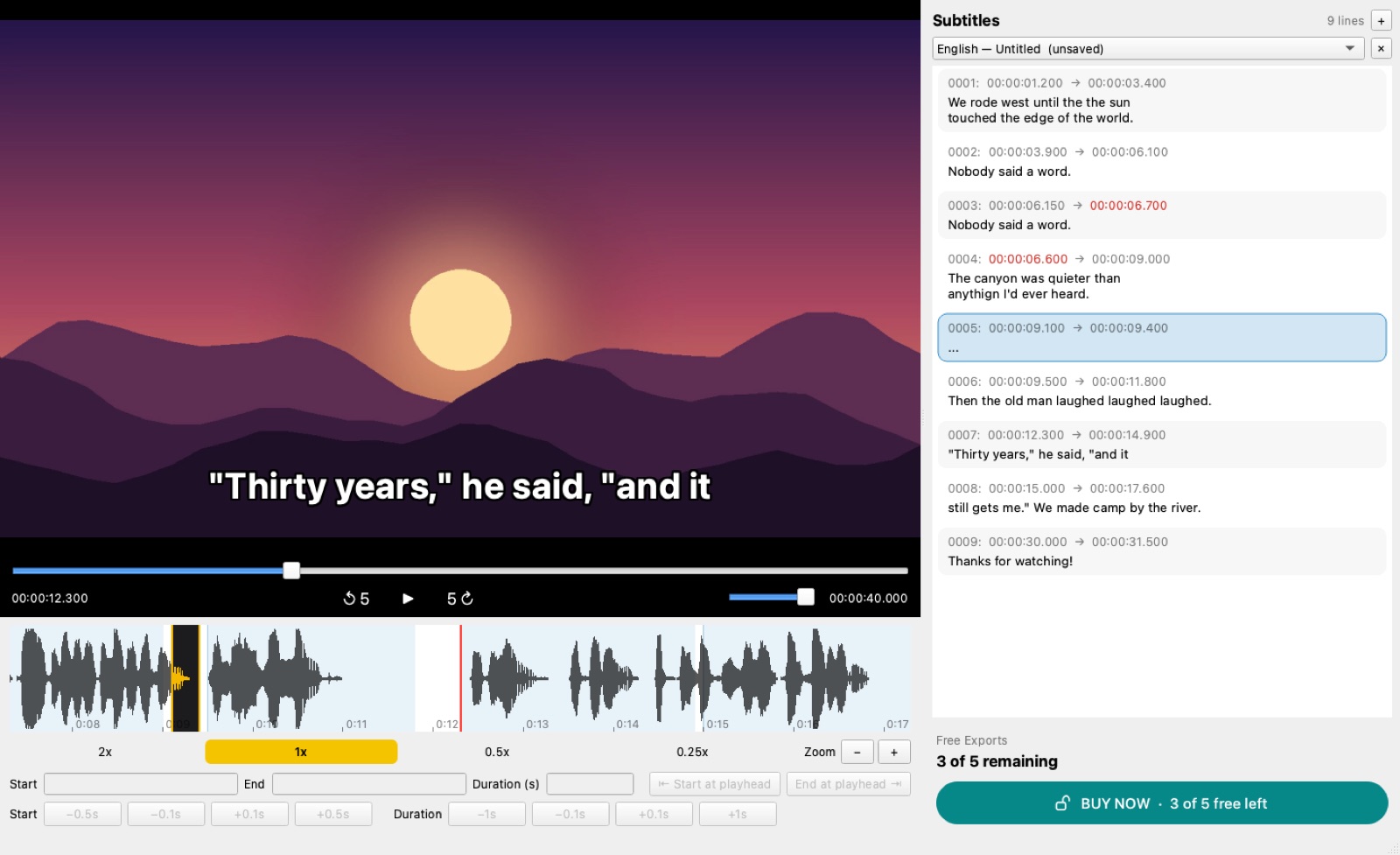
AI Transcribe & Sub Translate Pro listens to your video and writes the subtitles for you — with timing. Then it translates them into any language and lets you check every line side by side with the original.
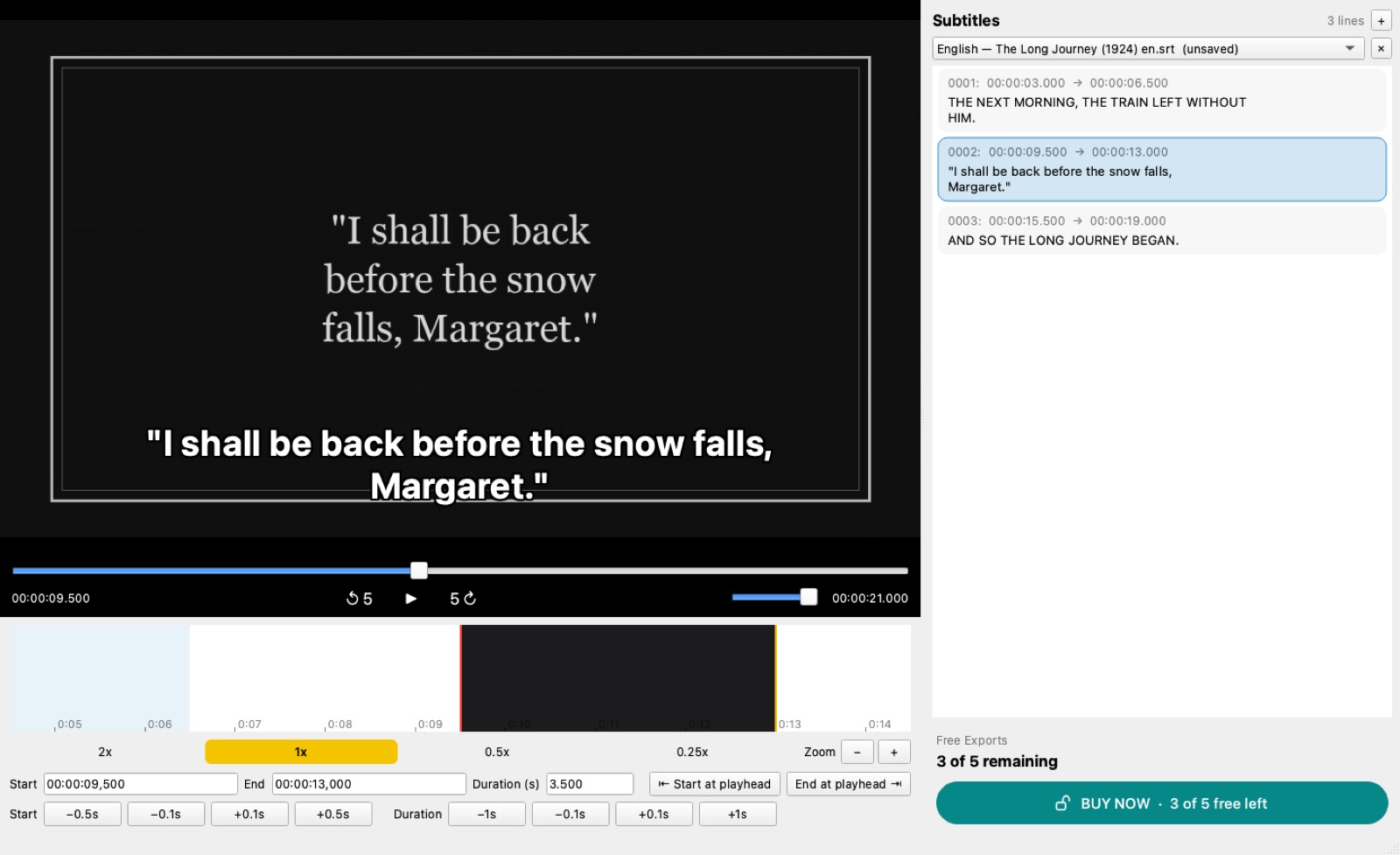
It even reads the text cards of silent movies and turns them into subtitles, and its AI clean-up removes misheard words and filler lines.
Open the video in AI Transcribe & Sub Translate Pro and choose Transcribe. The speech is turned into timed subtitle lines with OpenAI's Whisper model (through Groq's free tier or your own OpenAI key), saved as an SRT file next to the movie.
Yes. Open any SRT, WebVTT, SAMI or TTML file and translate it into one or more of 100+ languages. Every translation keeps the original timing and opens as its own file, and you can check it line by line next to the original.
No. You buy the app once and keep it. The first 5 exports are free, with no account and no card.
Only the audio is sent, and only when you choose Transcribe, to the speech service you picked (Groq or OpenAI, with your own key). Editing, timing and file handling happen on your Mac. Translation sends the subtitle text to the online translation service.
Yes. Subtitles from Text Cards finds the intertitles of a silent movie, reads them with the Mac's built-in text recognition and turns each card into a timed subtitle line, ready to translate.
SubRip (.srt), WebVTT (.vtt), SAMI (.smi) and TTML. You can open one format and save another, for example VTT to SRT.
Make every word of dialogue clear.
Clean up noisy movie soundtracks: AI separates voices from music, wind, traffic and hiss, then evens out the loudness — the picture stays untouched.

Download movies from most online sites.
Download movies from most online sites — paste a link from YouTube, Vimeo, Dailymotion, the Internet Archive or about 1,800 other sites — or search for full-length films, see every resolution and match them to IMDb.
📱 iPhone, iPad & Android — early 2027
Write once. Post everywhere.
Write a post once — AI checks spelling and readability, rewrites it in the style you want and publishes a tailored version to your social accounts and websites.
📱 iPhone, iPad & Android — early 2027
Your websites, safely backed up.
Daily backups of your website, saved on your Mac or in Google Drive, iCloud or Dropbox, with one-click restore and moving to a new host.

Back up, restore and move WordPress — right inside WordPress.
A WordPress plugin that backs up every file and the whole database in one .zip, daily or weekly, restores with one click and moves your site to a new host or address.

Today's sport, where to watch it and the live odds.
Every match of the day with live scores, the legal ways to watch it — free, free with an account or paid — and live odds from the big betting sites, on your Mac.
Your privacy
May we count your visit with Google Analytics? It shows us which pages help and where visitors come from. Nothing is stored until you accept. We never use advertising cookies or sell your data.